
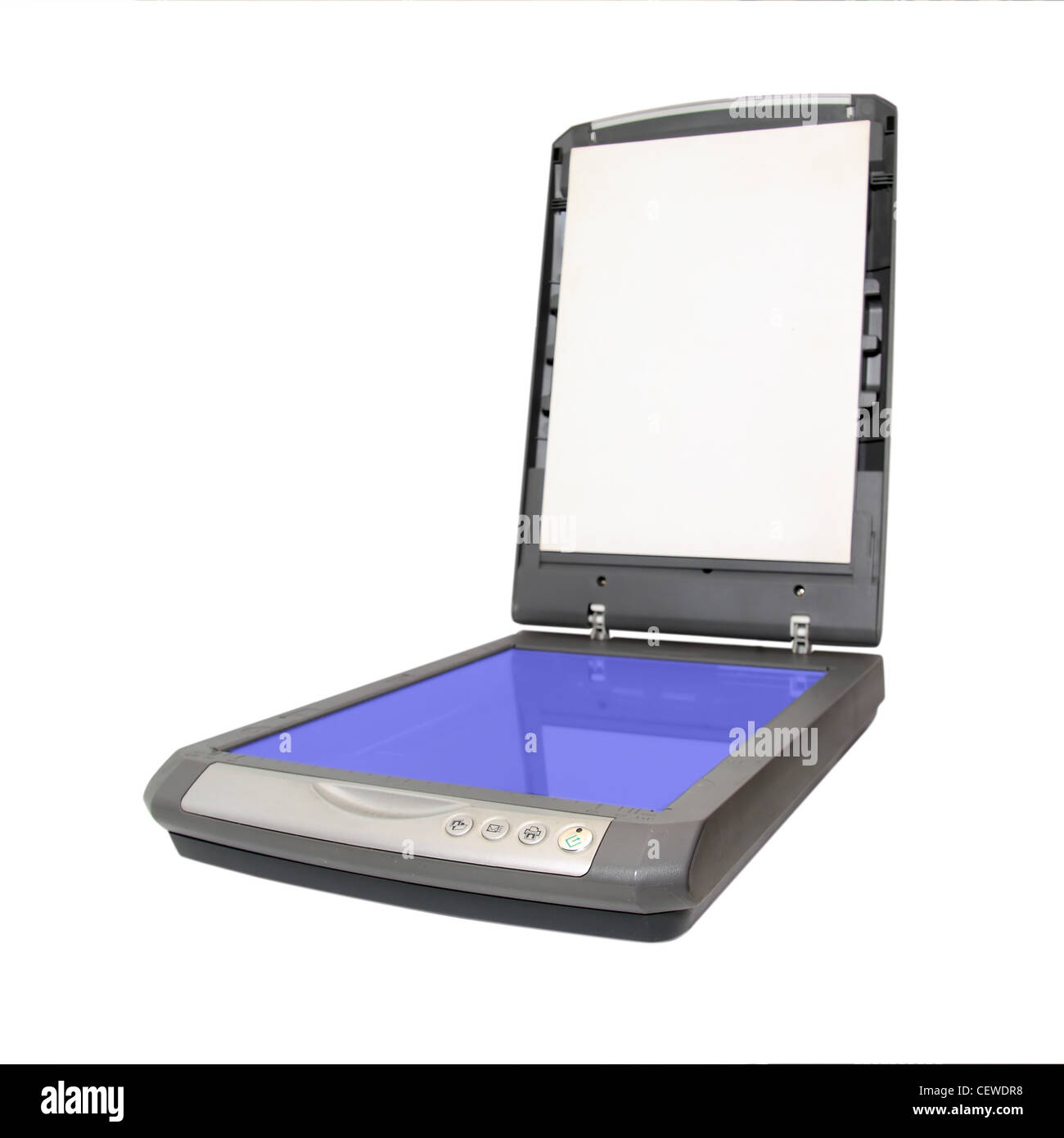
You don’t need a flatbed scanner to digitize photos. Your iPhone is a remarkably capable digitization tool — the camera is better than most consumer scanners, and there are excellent apps that make the process nearly automatic. If you have an iPhone and a stack of old printed photos, you can digitize them right now.
This guide covers the fastest, highest-quality methods for scanning photos using just your iPhone.
Why Use Your iPhone?
Dedicated scanners excel at batch processing — scanning hundreds of photos quickly with consistent quality. Your iPhone excels at convenience. You can scan a handful of photos in minutes without setting up any equipment. The latest iPhones (12 and later) have computational photography features that actively improve scanned image quality.
For a one-time project of 50-100 photos, your phone is often the faster choice. For a collection of 1,000+ photos, a dedicated scanner may be more efficient. Use the right tool for the job.
Method 1: Google Photos (Fastest, Built-In)
Google Photos has a built-in photo scanner that uses your camera to capture printed photos. It’s free, requires no additional app, and saves directly to Google Photos.
How to use it:
- Open Google Photos
- Tap the + button → Scan
- Hold your phone over the photo — it auto-detects edges and captures
- Adjust corners if needed, tap the checkmark
- Done — saved to Google Photos with excellent quality
What makes it good: Google’s computational photography applies automatic perspective correction (fixes keystoning), color restoration (brings back faded photos), and image enhancement. Photos that look washed out or yellowed come out looking remarkably restored.
The catch: You’re trusting Google with your photos (they analyze them for AI training, unless you opt out in settings).
Method 2: Microsoft Lens (Best for Documents)
Microsoft Lens (free, iOS and Android) is designed for document scanning but works excellently for photos. It captures, crops, and enhances images with multiple output options.
How to use it:
- Download Microsoft Lens from the App Store
- Open → tap the camera icon
- Choose Photo import (for existing photos) or Camera (for scanning)
- Capture or import your photo
- Use the enhancement options: Auto, Color, Grayscale, or Black & White
- Save to Photos, PDF, or cloud storage
What makes it good: The enhancement modes are genuinely useful. “Color” mode adjusts contrast and saturation intelligently. “Auto” mode typically produces the most natural-looking results. Output options are flexible.
The catch: Interface is a bit clunky compared to Google Photos.
Method 3: Apple Notes (Hidden Gem)
Apple’s built-in Notes app has a surprisingly capable document scanner. It’s already on your iPhone — no download required.
How to use it:
- Open Notes → create a new note (or open an existing one)
- Tap the camera icon → Scan Documents
- Hold your phone over the photo — it auto-captures
- Tap Save — the scan is embedded in the note
- To export: tap the share icon → Save Image
What makes it good: Zero extra apps, instant access, scans are automatically stored in iCloud if Notes is enabled. Great for quick one-off scans.
The catch: No batch mode (one photo at a time), limited enhancement options, exports to Photos as individual images rather than a unified library.
Method 4: Photomemory (AI Restoration)
Photomemory is an iOS app that goes beyond simple scanning — it uses AI to restore old, damaged, or faded photos.
What it does differently:
- Color restoration for faded/color-cast photos
- Scratch and crease removal
- Face enhancement (clarifies faces in old photos)
- Upscaling to higher resolutions
How to use it:
- Download Photomemory from the App Store
- Open → tap Scan or Import
- Capture or select a photo from your library
- The AI automatically processes the image
- Review before/after, adjust strength if needed
- Save or share
Pricing: Free to scan; AI restoration requires a subscription (~$5/month or ~$40/year).
The catch: Subscription for full features, though the free tier handles basic scanning well.
Method 5: Dedicated Scanners (For Serious Projects)
If you have hundreds of photos to digitize, a dedicated scanner becomes worth it. The Epson FastFoto FF-680W processes 36 photos per minute automatically. The Epson Perfection V600 delivers higher quality for fewer photos at a slower pace.
For large projects, also consider a professional scanning service. ScanMyPhotos and similar services can handle thousands of photos at reasonable per-image rates.
Tips for Better iPhone Photo Scanning
Lighting
Scanning outdoors on a cloudy day or under even indoor lighting eliminates glare. Never scan with a flash — it creates reflections on glossy photo paper.
Against a Background
Place photos on a contrasting background (dark paper for light photos, light paper for dark photos). This helps the auto-detection find the edges accurately.
Hold Steady
Even with optical image stabilization, a moment of camera shake during capture can blur details. Hold your phone with both hands and brace your elbows.
Skip the Glass
Never place photos directly on a glass scanner or scanner lid — you’ll get reflections. If scanning on a flatbed, leave the lid open.
Shoot in Good Light
The better the original capture conditions, the better the digital result. Overhead light or diffuse window light (not direct sunlight) produces the most even illumination.
Post-Scanning: What to Do With Your Digital Photos
Once scanned, digitize photos need to go somewhere. Options:
- Import to Google Photos — Automatic backup, excellent search, face clustering
- Import to Apple Photos — Native iOS/Mac integration, iCloud sync
- Import to Mylio — Best for large libraries you want to organize locally without cloud dependency
- External hard drive — For archival purposes, maintain a local backup of original scans
Regardless of where you store them, apply the same organization principles: date them, tag people, create event albums. Our photo organization guide has the full workflow.
The Bottom Line
For quick, high-quality scans of a few dozen photos: use Google Photos’ built-in scanner. The AI-powered enhancements are genuinely impressive, and it’s already on your phone.
For large projects: use a dedicated scanner or professional service. Your iPhone is excellent for occasional use, but batch processing hundreds of photos on a phone is tedious.
Whatever method you choose, start scanning. Those printed photos are fading every year. The best time to digitize them was a decade ago. The second-best time is today.
This guide was last updated April 2026.
See also: Complete Guide to Digitizing Photos.
See also: Best Photo Scanner Apps.
See also: How to Clean Old Photos Before Scanning.
Leave a Reply